
Support
How to contact Versa support, screen by screen
The in-app path to chat with Versa customer service (menu, Help Center, chat, My Tickets), how to write a message that gets a fast reply, and the phone line.
Quick answer
- In the app: tap the three-line icon at the top right, choose Help Center, then tap the green chat button at the bottom right.
- Replies and past conversations are in My Tickets, the ticket icon at the top right of Help Center.
- Can't log in? Call 03-7890 3500 (Monday to Friday, 9 am to 5 pm) or email support@versa.com.my.
What you need
- The Versa app, logged in (for in-app chat)
- A screenshot of the problem, if you have one
- The date, amount and fund name of the transaction involved
Pick the right channel
Versa has no walk-in counter. There are three official ways to reach them, and each suits a different situation.
| Channel | Best when | Details |
|---|---|---|
| In-app chat | You can log in and want to send a screenshot | Menu → Help Center → chat button |
| Phone | You want to speak to a person | 03-7890 3500, Monday to Friday, 9 am to 5 pm |
| You can’t log in, or the problem is long and needs documents | support@versa.com.my |
The Versa login screen has no help button. So if you can’t get into the app at all, use phone or email.
Follow the screens
This tutorial uses Versa app version 3.19.0 on iPhone. The Android layout is much the same.
01/07
Open the menu
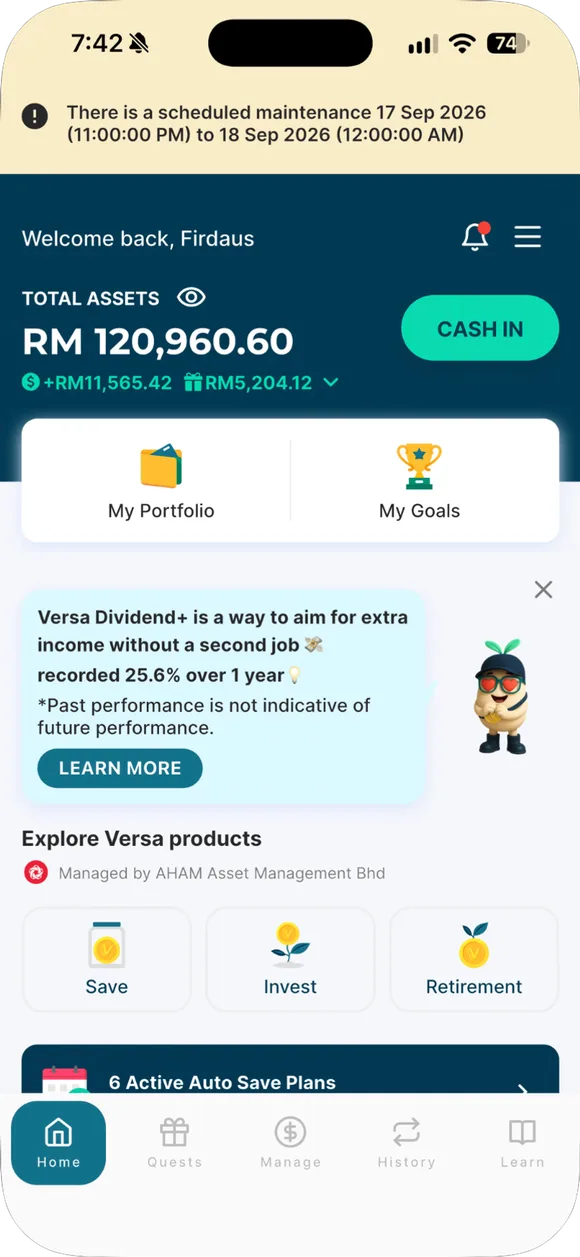
From the home screen, tap the three-line icon at the top right, next to the notification bell.
- Open the menu. From the home screen, tap the three-line icon at the top right, next to the notification bell.
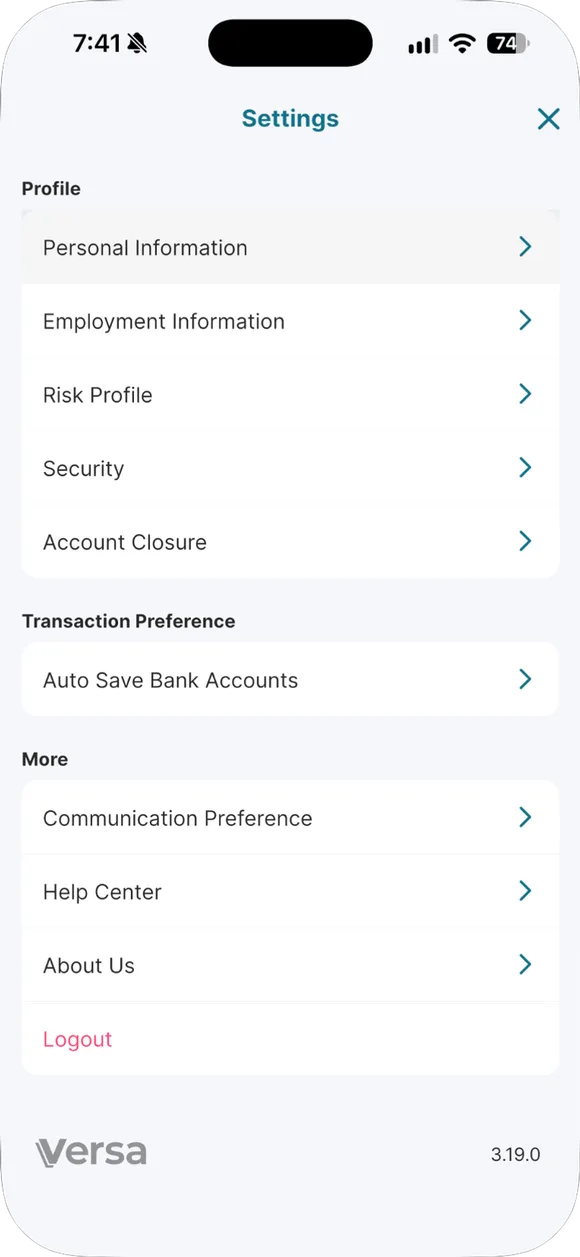
- Tap Help Center. Settings opens. Go to the More section and tap Help Center.
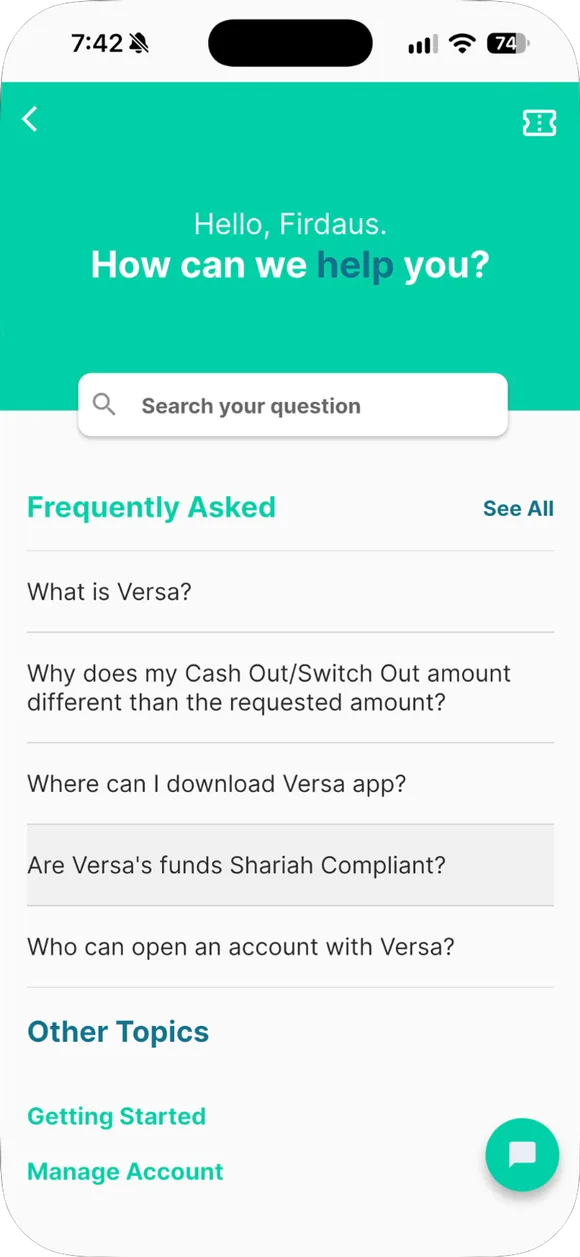
- Get to know Help Center. Three things matter here. The search box in the middle, the ticket icon at the top right for past conversations, and the green chat button at the bottom right to talk to customer service.
- Search first (fastest). Type your problem in the search box, for example cash out. Matching questions appear straight away. Many common questions already have answers, so you do not have to wait for a reply.
- Answer not enough? Contact Us. Read the article. If it still does not solve it, tap Contact Us under "Still need help?". It opens the same chat screen.
- Write your message and send. Type your problem in the Write a message box. Tap the paperclip to attach a screenshot, then tap Send.
- Check replies in My Tickets. Want to see a reply or continue an old conversation? Go back to Help Center and tap the ticket icon at the top right. Every conversation started in the app is listed here.
How to write a message that gets answered fast
Customer service needs to understand your problem without asking you back and forth. A complete first message gets a faster answer. Include these four things:
- What happened. One or two sentences, for example “My cash out from Versa Cash-i hasn’t reached my bank.”
- When. The date and time of the transaction, or when the problem started.
- How much and which fund. The amount and the fund name involved.
- A screenshot. Tap the paperclip and attach the screen that shows the problem, such as the transaction details in History.
An example of a complete message:
Hi Versa, the RM500 cash out from Versa Cash-i I made on 15 Sep 2026 at 9 am is still Processing, and the money hasn’t reached my Maybank account. I’ve attached a screenshot of the transaction details. Could you please check?
After sending, where do replies go?
Open Help Center again and tap the ticket icon at the top right. The My Tickets screen lists every conversation you started in the app. From there you can read replies and continue the same conversation.
Don’t start a new conversation for the same problem. When you continue the same ticket, staff can see everything discussed before.
Watch out for fake “support”
Every official channel is listed in the table above. Versa has Versa agents: Versa has no agents or advisors, so anyone who WhatsApps or calls you claiming to be “Versa staff” and asks for your OTP, password, or to tap a link is a scammer.
If in doubt, don’t reply. Open the app yourself and ask through the chat in Help Center. Read how to protect your Versa account from scams too.
Daus is not Versa staff and can’t check anyone’s account. For account problems, contact Versa directly using the channels above. If your problem is about verification, a rejected IC or the app showing RM0, check stuck account first, since many of these can be solved on your own.

Already have a Versa account?
Open the app and do this step now, while it is fresh in your mind.
Past returns do not guarantee future returns. Unit prices can go down. Not financial advice.